
Your home office is no longer just a convenient workspace. It is a business outpost, a communications hub, a document vault, and often the first line of defense against threats that target your employer, clients, finances, and personal identity.
Mission-ready security means building a digital perimeter that performs under pressure. It is not about buying every tool available. It is about making smart, layered decisions so your network, devices, accounts, and habits work together to reduce risk every day.
Think Like a Defender, Not a Device Owner
Most home office security problems begin with a narrow mindset. People think about laptops, phones, printers, and routers as separate objects. Attackers do not. They look for paths. A weak Wi-Fi password, an outdated printer, a reused email password, a careless file share, or an unprotected video meeting can become the opening move in a larger intrusion.
Thinking like a defender means mapping how work actually happens. Which devices connect to your network? Which accounts store sensitive information? Which apps handle client files, financial data, credentials, or intellectual property? Which family members or guests share the same internet connection? Once you understand the full environment, you can create a perimeter that protects the workflow rather than only the hardware.
A mission-ready home office also assumes that threats are persistent. Phishing emails arrive when you are tired. Software updates appear when you are busy. A child may install a game on a shared device. A smart camera may ship with weak default settings. The goal is not perfection. The goal is resilience, meaning one mistake should not become a full compromise.
Build a Strong Network Foundation
Your router is the gatehouse of your digital perimeter. If it is misconfigured, outdated, or using default credentials, every connected device inherits that weakness. Start by logging into the router administration panel and changing the default administrator username and password. Use a long, unique password stored in a password manager, not a variation of your Wi-Fi password.
Next, update the router firmware. Many people update laptops and phones but ignore the device that manages all traffic. Router updates often patch serious vulnerabilities that attackers can exploit remotely. If your router no longer receives security updates from the manufacturer, replace it. Old networking gear may still function, but mission-ready security depends on active support.
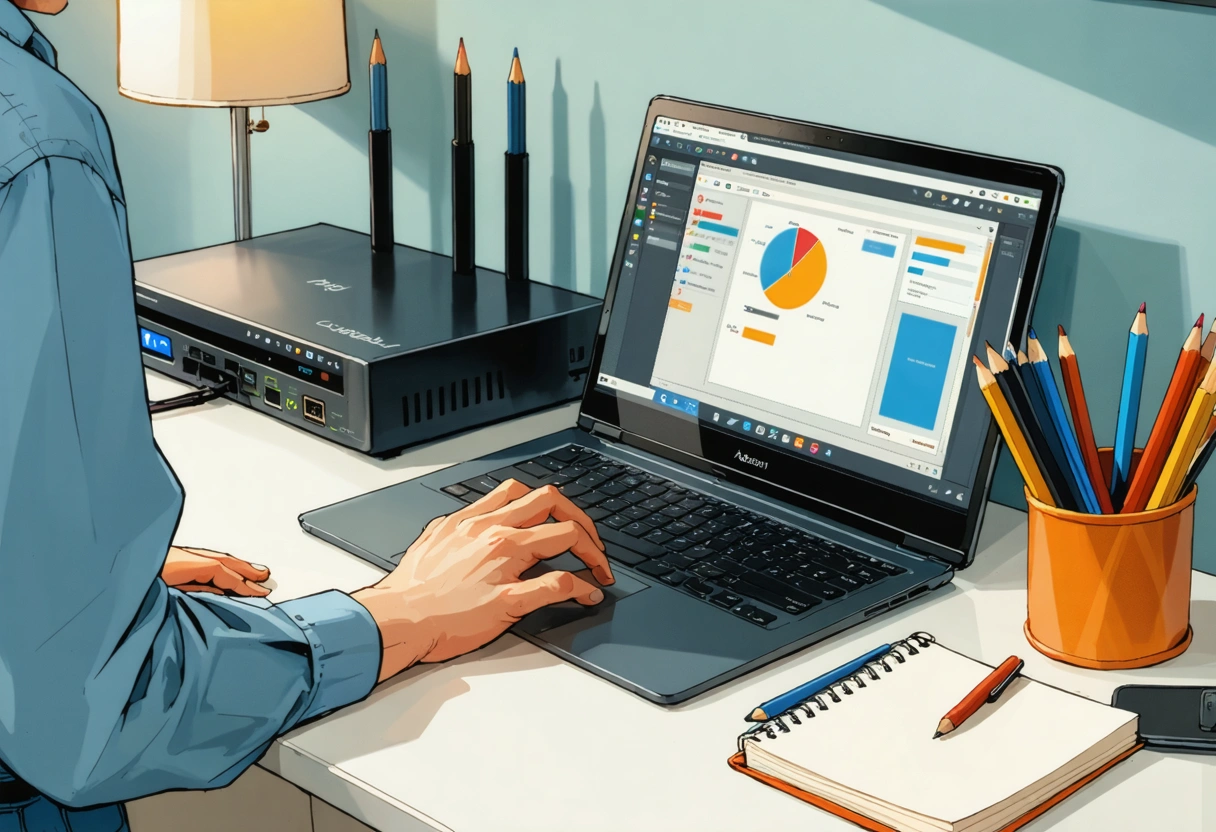
Use WPA3 encryption if your router and devices support it. If not, use WPA2-AES and avoid outdated options such as WEP or WPA. Create a strong Wi-Fi passphrase that is not used anywhere else. A good passphrase can be memorable and long, such as a sentence with uncommon words, numbers, and symbols. Length matters because it raises the cost of guessing attacks.
Separate work traffic from casual traffic whenever possible. Many modern routers allow guest networks or multiple network names. Put smart TVs, gaming consoles, smart speakers, cameras, and guest devices on a separate network from your work laptop. Internet of Things devices are useful, but they are not always designed with enterprise-grade security. Isolation limits how much damage a compromised device can cause.
For additional guidance, the Cybersecurity and Infrastructure Security Agency provides practical advice on securing your home network, including router settings, wireless protection, and safe configuration habits. Treat these basics as operational requirements, not optional enhancements.
Harden Every Endpoint in the Workspace
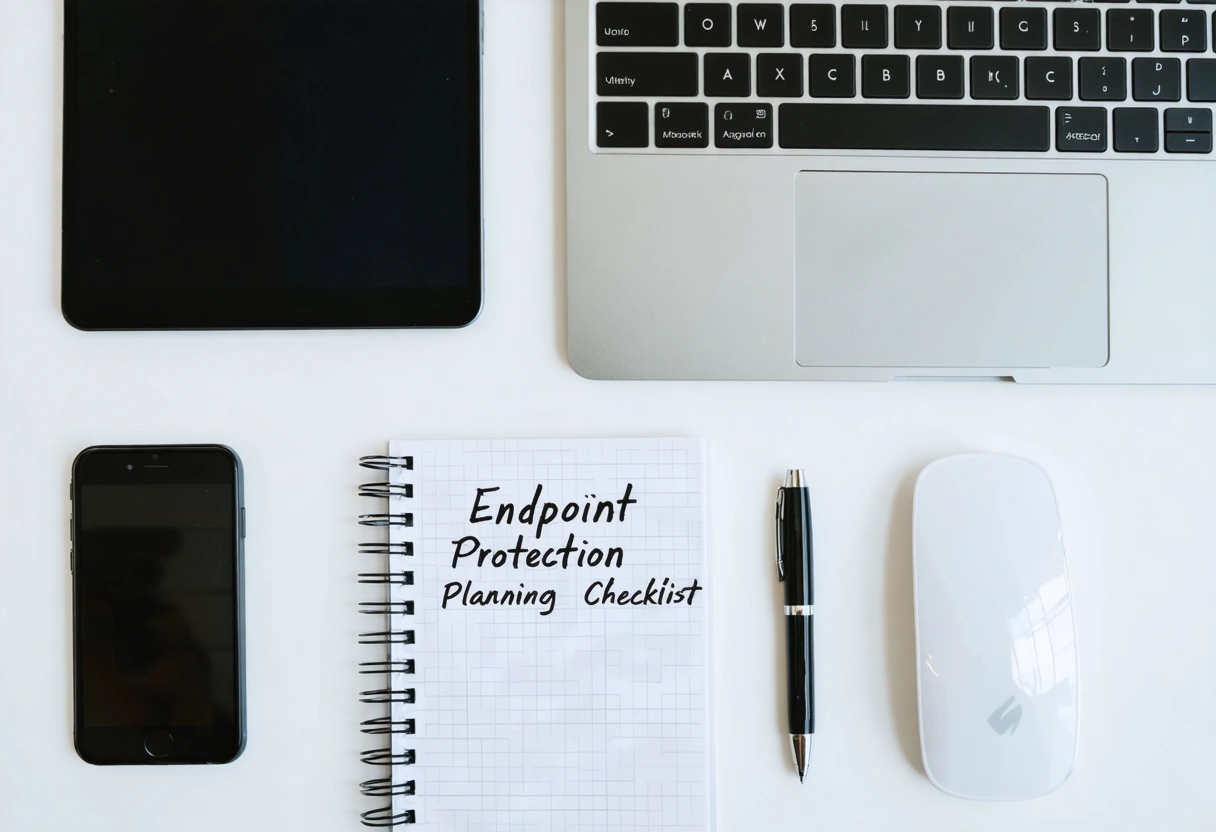
An endpoint is any device that connects to your network and handles data. In a home office, that usually includes a work computer, personal laptop, smartphone, tablet, printer, external drive, webcam, headset, and sometimes a network-attached storage device. Each endpoint should have a defined role and a security baseline.
Start with updates. Enable automatic updates for operating systems, browsers, office software, collaboration tools, PDF readers, password managers, and security applications. Attackers frequently exploit known vulnerabilities after patches are available because they know many users delay installation. A mission-ready posture closes that window quickly.
Install reputable endpoint protection on computers used for work. Modern protection should include malware detection, behavior monitoring, malicious website blocking, and ransomware defense. However, do not rely on antivirus alone. Security tools are a safety net, not a substitute for disciplined configuration and cautious behavior.
Remove software you do not use. Every browser extension, old utility, trial application, and forgotten remote access tool increases the attack surface. Browser extensions are especially important because they can potentially read pages, capture input, or modify browsing behavior. Keep only extensions you trust and actively need.
Encrypt devices that store work data. Full-disk encryption protects files if a laptop is stolen from a car, cafe, airport, or shared home environment. Use screen locks with short inactivity timers, especially if children, roommates, visitors, or service workers may be nearby. Physical access is still access.
Do not ignore printers and scanners. Many store cached documents, support remote management, and connect to cloud services. Change default passwords, disable unused features, update firmware, and avoid exposing printer management interfaces to the internet. If a printer handles confidential contracts, tax records, or client files, it belongs inside your security plan.
Make Identity the Core of the Perimeter
In cloud-based work, identity is often more important than location. Your accounts are doors into email, storage, finance systems, project platforms, code repositories, customer records, and communication channels. If an attacker gets your credentials, they may not need to break your device at all.
Use a password manager to create unique passwords for every account. Reuse is one of the most dangerous habits in home office security. When one website suffers a breach, attackers test the exposed email and password combination across many other services. A unique password prevents one breach from becoming many breaches.
Enable multi-factor authentication for email, banking, cloud storage, work platforms, social accounts, and password managers. Authentication apps, hardware security keys, and passkeys are stronger than SMS codes because phone numbers can be hijacked or redirected. If your organization supports hardware security keys, they are an excellent choice for high-value accounts.
Be intentional with account recovery settings. A strong password means little if an old email address, weak security question, or unused phone number can reset it. Review recovery emails, trusted devices, backup codes, and emergency access procedures. Store backup codes securely, preferably in your password manager or a locked physical location.

For remote and hybrid workers, the National Institute of Standards and Technology offers a detailed framework in its Guide to Enterprise Telework, Remote Access, and Bring Your Own Device Security. While written for organizations, it contains principles that translate directly to disciplined home office protection.
Defend Against Phishing, Social Engineering, and Impersonation
Phishing is not just a technology problem. It is a decision problem created under pressure. Attackers design messages to trigger urgency, fear, curiosity, greed, loyalty, or helpfulness. They may impersonate your boss, a vendor, a bank, a delivery company, a client, a software provider, or a government agency.
Mission-ready defense requires a verification routine. Before clicking a link, opening an attachment, approving a payment, sharing a file, or entering credentials, pause and inspect the request. Check the sender address, not just the display name. Look for unusual language, unexpected urgency, mismatched domains, and requests that bypass normal process.
Use out-of-band verification for sensitive actions. If a vendor emails new banking instructions, call a known phone number from your records, not the number in the email. If a manager asks for gift cards or urgent wire transfers, verify through a separate channel. If a shared document requires a login, navigate directly to the service instead of using the email link.
Phishing has also moved beyond email. Text messages, collaboration platforms, social media messages, QR codes, calendar invites, and voice calls can all be weaponized. QR code phishing is especially deceptive because phones hide the destination until after scanning. Treat QR codes in public places, unexpected emails, and printed handouts with caution.
The Federal Trade Commission maintains clear consumer guidance on how to recognize and avoid phishing scams. Use that knowledge to create a personal rule: if the request involves money, credentials, confidential files, or account changes, slow down and verify.
Protect Data as If It Is Already Being Targeted
Data protection starts with classification. Not every file requires the same handling, but you should know which materials are sensitive: client records, contracts, tax documents, employee information, strategy notes, source files, login exports, legal correspondence, and financial spreadsheets. Store those items only in approved locations, not scattered across desktops, downloads folders, personal email accounts, and random USB drives.
Use secure cloud storage with access controls, version history, and recovery features. Version history is especially valuable against ransomware because it may allow you to restore clean copies after malicious encryption or accidental deletion. Review sharing permissions regularly. A document shared broadly for convenience can become a silent exposure that lasts for months.

Backups are part of security, not just disaster recovery. Follow the 3-2-1 principle: keep three copies of important data, on two types of storage, with one copy offline or otherwise isolated. For a home office, that might mean your working files, a reputable cloud backup, and an encrypted external drive disconnected when not in use.
Secure Remote Access and Collaboration Tools
Remote access tools deserve special scrutiny because they can create direct pathways into your workspace. Disable remote desktop features unless you truly need them. If remote access is required, protect it with multi-factor authentication, strong permissions, current software, and logging. Never expose remote administration services directly to the open internet without appropriate safeguards.
Video meetings also need operational discipline. Use waiting rooms or lobbies for sensitive calls, require meeting passwords when appropriate, and avoid posting meeting links in public channels. Confirm attendees before discussing confidential subjects. If you record meetings, store recordings in approved locations and delete them when they are no longer needed.
Collaboration platforms can blur boundaries between casual chat and official recordkeeping. Be cautious with file uploads, third-party app integrations, and external guest access. When a project ends, remove guests, revoke shared links, and archive files according to your retention requirements.
Make Security a Repeatable Routine
A mission-ready home office is built through repeatable habits. Monthly, update devices, review account activity, check router firmware, remove unused apps, inspect shared files, and confirm backups. Quarterly, rotate critical passwords if required by policy, review recovery options, and test whether you can restore important files.
The strongest digital perimeter is layered, practical, and maintained. Secure networking reduces exposure. Hardened endpoints resist compromise. Strong identity controls protect cloud access. Phishing awareness prevents manipulation. Backups preserve continuity. When these layers work together, your home office becomes more than convenient. It becomes a reliable, resilient, mission-ready environment for serious work.
Create an Incident Response Playbook Before You Need It
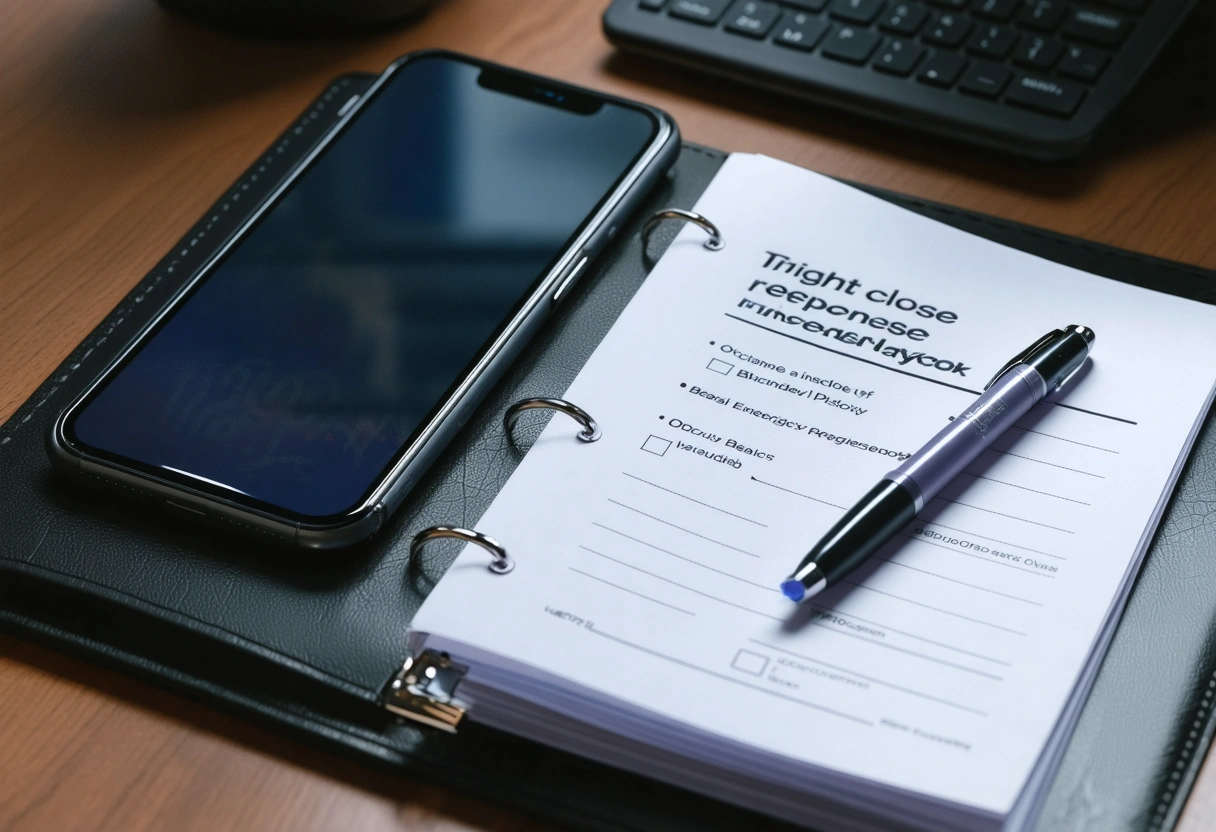
Even a well-defended home office should assume that something may eventually go wrong. A suspicious login alert, missing laptop, ransomware warning, fraudulent invoice, or accidental file share can become far less damaging when you already know what to do. Write a simple incident response playbook and keep it somewhere accessible even if your main computer is unavailable.
Your playbook should include immediate containment steps. Disconnect a suspected device from Wi-Fi, unplug Ethernet, stop using the affected account, and avoid deleting evidence until you understand what happened. Capture screenshots of alerts, suspicious emails, account activity, file changes, and error messages. These details help IT teams, banks, insurers, or platform support teams investigate accurately.
List emergency contacts in priority order. Include your employer help desk, manager, bank fraud line, credit card issuers, cloud service support, internet provider, and any clients who may require notification under contract. If you run a small business, include legal counsel and cyber insurance contacts if applicable. Speed matters, but accuracy matters too. A prepared contact list prevents rushed searches during a stressful event.
Bring the Whole Household Into the Security Boundary
A home office rarely exists in isolation. Family members, roommates, guests, smart devices, and shared spaces can influence your risk. Set simple household rules that support work security without turning the home into a fortress. For example, work devices should not be borrowed, children should use separate profiles or devices, and guests should connect only to the guest Wi-Fi network.
Physical privacy is part of digital security. Position screens away from windows and common areas when handling sensitive work. Use a privacy filter if your workspace is visible to others. Store notebooks, printed contracts, hardware keys, and external drives in a drawer or locked cabinet when not in use.
Security becomes sustainable when everyone understands the reason behind the rules. Explain that a compromised game console, shared tablet, or reused password can create real consequences for income, privacy, and professional trust. A mission-ready perimeter is stronger when the people inside it know how to protect it.
Need help with Securing Your Digital Perimeter: Mission-Ready Security for Home Offices?